
I have been monitoring several parts of my QNAP NAS from Home Assistant for quite some time, and one thing I still wanted to improve was firmware update monitoring. The goal sounds simple: let Home Assistant tell me when a new firmware version is available for my QNAP TS-253D.
In practice, there is an important complication. QNAP firmware releases do not always change the main QTS version number. For example, my NAS was running:
QTS 5.2.10
Build 20260722
while QNAP was offering:
QTS 5.2.10.3577
Build 20260731
Official
Both releases are therefore called 5.2.10, but they have different build numbers. That means a simple comparison of:
5.2.10 == 5.2.10
would incorrectly tell us that no update exists. The solution described in this article uses QNAP’s own firmware update mechanism to determine the firmware that applies to the NAS, converts that information into JSON, and publishes it to MQTT. Home Assistant then only needs to subscribe to the MQTT topic.
The resulting flow is:
QNAP TS-253D
    |
    | /sbin/auto_update -d
    |
    v
Shell script
    |
    | mosquitto_pub
    |
    v
MQTT broker
    |
    v
Home Assistant
No firmware installation is performed by Home Assistant. This solution is monitoring-only, and QTS remains completely responsible for actually downloading and installing firmware updates.
What the final MQTT message looks like
The final payload published by my NAS looks like this:
{
  "installed_version": "5.2.10",
  "installed_build": "20260722",
  "latest_version": "5.2.10",
  "latest_build": "20260731",
  "latest_number": "3577",
  "publication_date": "Tue, 04, Aug 2026 16:40:02 +0800",
  "checked_at": "2026-08-16 16:58:20",
  "update_available": true
}
Home Assistant can therefore see not only that an update exists, but also which build is installed, which build is available, the QTS revision number, and when the check was last performed.
1. The first attempt: QNAP’s Live Update configuration
I started by checking what QTS stores in /etc/config/uLinux.conf. The installed QTS version can be obtained with:
getcfg System Version -f /etc/config/uLinux.conf
On my TS-253D this returned:
5.2.10
The installed build number can be retrieved with:
getcfg System "Build Number" -f /etc/config/uLinux.conf
Output:
20260722
I also inspected update-related settings:
grep -i "update" /etc/config/uLinux.conf
This returned, among other settings:
Enable Live Update = TRUE
QTS Live Update XML = https://update.qnap.com/QTS_FW.xml
Hero Live Update XML = https://update.qnap.com/QTS_Hero_FW.xml
Latest Check Live Update = 2026/08/16 16:14:41
Update Remind Time = 0
Latest Live Update = 2026/07/29 10:35:46
SMTP_FW_UPDATE = 0
SMS_FW_UPDATE = 0
PUSH_FW_UPDATE = 0
migration_app_update = 2
auto_update = TRUE
update_policy = 0
auto_update_required_qpkg = 1
At first sight, the following looked promising:
getcfg System "Live Update Available" -f /etc/config/uLinux.conf
However, while QTS was visibly offering me a firmware update in the GUI, this value did not indicate an update. I therefore decided not to use this flag.
2. Investigating QNAP’s firmware XML
The configuration showed this URL:
https://update.qnap.com/QTS_FW.xml
I queried it directly:
wget -qO- https://update.qnap.com/QTS_FW.xml | grep -i -A 10 -B 5 "TS-253D"
The TS-253D was correctly found as part of the TS-X53D firmware family:
<productName>HS-453DX,TBS-453DX,TS-251D,TS-253D,TS-451D,TS-451D2,TS-453D,TS-453Dmini,TS-653D</productName>
<modelName>TS-X53D</modelName>
<status>active</status>
<deployment/>
<firmware>
    <version>5.0.1</version>
    <number>2425</number>
    <buildNumber>20230609</buildNumber>
That immediately showed another problem. The generic XML file was reporting:
5.0.1
Build 20230609
while my NAS was already running:
5.2.10
Build 20260722
So the generic QTS_FW.xml file clearly was not the modern live-update feed that QTS 5.2 was actually using.
3. Finding QNAP’s internal firmware-update tools
I searched the NAS for firmware and update-related executables:
find /sbin /usr/sbin /bin /usr/bin /home/httpd/cgi-bin \
  -type f \( -iname '*firmware*' -o -iname '*update*' -o -iname '*liveupdate*' \) \
  2>/dev/null | head -100
The output contained several interesting files:
/sbin/qddns_update
/sbin/auto_update
/sbin/sas_updater
/sbin/eeupdate64e_e810
/sbin/eeupdate64e
/sbin/live_update
/usr/sbin/ez-ipupdate
/home/httpd/cgi-bin/apps/systemPreferences/functions/firmware.js
/home/httpd/cgi-bin/upload_firmware.cgi
The two most interesting binaries were:
/sbin/live_update
/sbin/auto_update
Running:
/sbin/live_update --help
returned:
usage:
        [ check_new_firmware | get_new_firmware ] xml_url [temp dir]
Inspecting strings inside the executable also showed firmware-related functions:
strings /sbin/live_update | grep -Ei "https?://|xml|cgi|firmware|version|build|update" | head -100
Among the output:
Get_System_Version
Get_Build_Number
buildNumber
updateInfoURL
get_live_firmware_version
live firmware version = %s%s
check_new_firmware
get_new_firmware
This confirmed that QTS contains its own firmware-checking logic. However, the real breakthrough came from /sbin/auto_update.
4. Using QNAP’s own firmware selection logic
Run:
/sbin/auto_update -d
This produces diagnostic information about QNAP’s firmware update system. On my TS-253D, the beginning of the output looked like this:
latest = [1] recommended = [1] enable_important = [1]
action_mode = [2]

recommended xml_url = https://update.qnap.com/QTS_FW_5.2.0_recommended.xml
latest xml_url = https://update.qnap.com/QTS_FW_5.2.0.xml
Important Security xml_url = https://update.qnap.com/QTS_FW_5.2.0_security.xml

tmpdir = /mnt/update
sys_model_name = TS-X53D
display_model_name = TS-253D

local_version = 5.2.10
local_build_num = 20260722
product = storage
This was exactly the information I needed. QTS itself knew that:
Physical model: TS-253D
Firmware family: TS-X53D
Installed QTS: 5.2.10
Installed build: 20260722
Further down, the command showed the firmware QNAP currently offered for this NAS:
productName = HS-453DX
ptr_model = TS-253D
model = TS-X53D
status = active

version = 5.2.10
number = 3577
build number = 20260731
version_postfix = Official
severity = 3
pubDate = Tue, 04, Aug 2026 16:40:02 +0800

downloadURL[0] = https://download.qnap.com/Storage/TS-X53D/TS-X53D_20260731-5.2.10.3577.zip
downloadURL[1] = https://eu1.qnap.com/Storage/TS-X53D/TS-X53D_20260731-5.2.10.3577.zip
downloadURL[2] = https://us1.qnap.com/Storage/TS-X53D/TS-X53D_20260731-5.2.10.3577.zip
The critical comparison therefore was:
Installed build: 20260722
Available build: 20260731
Because:
20260731 > 20260722
an update is available. I verified this against the QTS GUI, which displayed:
New firmware updates are available

5.2.10.3577 Build 20260731 Official
Latest update
So /sbin/auto_update -d was producing exactly the same firmware version that the QTS GUI was offering, which made it the ideal data source.
5. Creating the firmware status script
I created a shell script that runs /sbin/auto_update -d, extracts the installed firmware information, extracts the latest available firmware information, compares the build numbers, and creates a JSON response.
The script is stored at:
/share/homes/rutger2/qnap_fw_status.sh
To create the file without using vi, I used a cat heredoc. At this stage, before MQTT was added, the core script looked like this:
cat > /share/homes/rutger2/qnap_fw_status.sh <<'EOF'
#!/bin/sh

OUTPUT=$(/sbin/auto_update -d 2>&1)

LOCAL_VERSION=$(echo "$OUTPUT" | grep '^local_version = ' | head -1 | sed 's/^local_version = //')
LOCAL_BUILD=$(echo "$OUTPUT" | grep '^local_build_num = ' | head -1 | sed 's/^local_build_num = //')

LATEST_VERSION=$(echo "$OUTPUT" | grep '^version = ' | head -1 | sed 's/^version = //')
LATEST_BUILD=$(echo "$OUTPUT" | grep '^build number = ' | head -1 | sed 's/^build number = //')
LATEST_NUMBER=$(echo "$OUTPUT" | grep '^number = ' | head -1 | sed 's/^number = //')
PUBDATE=$(echo "$OUTPUT" | grep '^pubDate = ' | head -1 | sed 's/^pubDate = //')

if [ -n "$LOCAL_BUILD" ] && [ -n "$LATEST_BUILD" ] && [ "$LATEST_BUILD" -gt "$LOCAL_BUILD" ]; then
    UPDATE_AVAILABLE=true
else
    UPDATE_AVAILABLE=false
fi

printf '{"installed_version":"%s","installed_build":"%s","latest_version":"%s","latest_build":"%s","latest_number":"%s","publication_date":"%s","update_available":%s}\n' \
    "$LOCAL_VERSION" \
    "$LOCAL_BUILD" \
    "$LATEST_VERSION" \
    "$LATEST_BUILD" \
    "$LATEST_NUMBER" \
    "$PUBDATE" \
    "$UPDATE_AVAILABLE"
EOF
The file then needs executable permission:
chmod +x /share/homes/rutger2/qnap_fw_status.sh
Testing it:
/share/homes/rutger2/qnap_fw_status.sh
returned:
{"installed_version":"5.2.10","installed_build":"20260722","latest_version":"5.2.10","latest_build":"20260731","latest_number":"3577","publication_date":"Tue, 04, Aug 2026 16:40:02 +0800","update_available":true}
At this point, the firmware detection itself was complete.
6. Why I moved away from Home Assistant SSH polling
Initially I considered having Home Assistant execute the script remotely through the Command Line integration:
- sensor:
    name: "QNAP Firmware Update"
    unique_id: qnap_firmware_update
    command: "ssh -i /config/.ssh/qnap_hass hass@192.168.1.95 /share/homes/rutger2/qnap_fw_status.sh"
    scan_interval: 3600
    value_template: "{{ value_json.update_available }}"
Running the SSH command manually from the Home Assistant terminal worked perfectly. However, the Command Line integration occasionally returned:
Command failed (with return code 255)
followed by:
Empty reply found when expecting JSON data
Exit code 255 is SSH’s own error code, so the script never even ran. The cause turned out to be that Home Assistant Core and the SSH terminal add-on run in separate containers with a different $HOME, so Core could not find the known_hosts file that worked fine from the terminal. Adding -o UserKnownHostsFile=/config/.ssh/known_hosts -o StrictHostKeyChecking=accept-new to the SSH command solves that. Even so, having Home Assistant poll the NAS over SSH felt fragile, and /sbin/auto_update -d contacts QNAP’s update servers, which can take a while. So I decided to reverse the direction:
QNAP → MQTT → Home Assistant
This turned out to be a much cleaner solution.
7. Installing an MQTT client on QNAP
My QNAP installation did not contain mosquitto_pub. Checking:
which mosquitto_pub
returned nothing. The NAS did have curl:
which curl
Output:
/sbin/curl
and also nc:
which nc
Output:
/usr/local/sbin/nc
Neither is an ideal replacement for a real MQTT client, so I installed Entware.
8. Installing Entware on QNAP
I installed the Entware QPKG through QNAP App Center using the manual installation option. After installation, I verified opkg:
/opt/bin/opkg --version
Output:
opkg version 80503d94e356476250adaf1f669ee955ec26de76 (2025-11-05)
The first attempt to update the package list as my normal QNAP user failed:
/opt/bin/opkg update
Output:
Downloading http://bin.entware.net/x64-k3.2/Packages.gz
*** Failed to download the package list from http://bin.entware.net/x64-k3.2/Packages.gz

Collected errors:
 * file_move: Failed to rename /opt/tmp/opkg-.../Packages.gz to /opt/var/opkg-lists/entware: Permission denied.
The problem was simply permissions. Running it through sudo worked:
sudo /opt/bin/opkg update
Output:
Downloading http://bin.entware.net/x64-k3.2/Packages.gz
Updated list of available packages in /opt/var/opkg-lists/entware
9. Installing mosquitto_pub
I then installed the Mosquitto client package:
sudo /opt/bin/opkg install mosquitto-client
After installation:
/opt/bin/mosquitto_pub --help
showed:
mosquitto_pub is a simple mqtt client that will publish a message on a single topic and exit.
mosquitto_pub version 2.0.22 running on libmosquitto 2.0.22.
MQTT publishing was now available directly on the NAS.
10. Testing MQTT from QNAP
Before modifying the firmware script, I tested publishing a simple retained message. My MQTT topic is:
qnap/notifications/fw_update
The test command was:
/opt/bin/mosquitto_pub \
  -h MQTT_BROKER_IP \
  -p 1883 \
  -u qnap \
  -P 'MQTT_PASSWORD' \
  -t "qnap/notifications/fw_update" \
  -m '{"test":true}' \
  -r
Replace:
MQTT_BROKER_IP
MQTT_PASSWORD
with your own MQTT broker address and credentials. The -r option is important because it makes the message retained, which means Home Assistant immediately receives the last known firmware state after a restart even if the QNAP does not perform another check immediately.
The test message appeared successfully:
{
  "test": true
}
With MQTT communication proven, I could integrate it into the firmware script.
11. Final QNAP firmware-to-MQTT script
This is the complete script I now use. Do not publish your MQTT password publicly; replace the placeholders with your own values.
cat > /share/homes/rutger2/qnap_fw_status.sh <<'EOF'
#!/bin/sh

MQTT_HOST="MQTT_BROKER_IP"
MQTT_PORT="1883"
MQTT_USER="qnap"
MQTT_PASSWORD="YOUR_MQTT_PASSWORD"
MQTT_TOPIC="qnap/notifications/fw_update"

OUTPUT=$(/sbin/auto_update -d 2>&1)

LOCAL_VERSION=$(echo "$OUTPUT" | grep '^local_version = ' | head -1 | sed 's/^local_version = //')
LOCAL_BUILD=$(echo "$OUTPUT" | grep '^local_build_num = ' | head -1 | sed 's/^local_build_num = //')

LATEST_VERSION=$(echo "$OUTPUT" | grep '^version = ' | head -1 | sed 's/^version = //')
LATEST_BUILD=$(echo "$OUTPUT" | grep '^build number = ' | head -1 | sed 's/^build number = //')
LATEST_NUMBER=$(echo "$OUTPUT" | grep '^number = ' | head -1 | sed 's/^number = //')
PUBDATE=$(echo "$OUTPUT" | grep '^pubDate = ' | head -1 | sed 's/^pubDate = //')

CHECKED_AT=$(date "+%Y-%m-%d %H:%M:%S")

if [ -n "$LOCAL_BUILD" ] && [ -n "$LATEST_BUILD" ] && [ "$LATEST_BUILD" -gt "$LOCAL_BUILD" ]; then
    UPDATE_AVAILABLE=true
else
    UPDATE_AVAILABLE=false
fi

JSON=$(printf '{"installed_version":"%s","installed_build":"%s","latest_version":"%s","latest_build":"%s","latest_number":"%s","publication_date":"%s","checked_at":"%s","update_available":%s}' \
    "$LOCAL_VERSION" \
    "$LOCAL_BUILD" \
    "$LATEST_VERSION" \
    "$LATEST_BUILD" \
    "$LATEST_NUMBER" \
    "$PUBDATE" \
    "$CHECKED_AT" \
    "$UPDATE_AVAILABLE")

echo "$JSON"

/opt/bin/mosquitto_pub \
    -h "$MQTT_HOST" \
    -p "$MQTT_PORT" \
    -u "$MQTT_USER" \
    -P "$MQTT_PASSWORD" \
    -t "$MQTT_TOPIC" \
    -m "$JSON" \
    -r
EOF
Make it executable:
chmod +x /share/homes/rutger2/qnap_fw_status.sh
Then manually test it:
/share/homes/rutger2/qnap_fw_status.sh
My output was:
{"installed_version":"5.2.10","installed_build":"20260722","latest_version":"5.2.10","latest_build":"20260731","latest_number":"3577","publication_date":"Tue, 04, Aug 2026 16:40:02 +0800","checked_at":"2026-08-16 16:58:20","update_available":true}
At exactly the same time, the retained MQTT message was updated.
12. Automatically checking every six hours
The firmware check does not need to run every few minutes. Firmware releases are infrequent, and /sbin/auto_update -d talks to QNAP’s update infrastructure, so I decided to run the script once every six hours.
QNAP stores its persistent cron configuration in:
/etc/config/crontab
I added the following job:
sudo sh -c 'echo "15 */6 * * * /share/homes/rutger2/qnap_fw_status.sh >/dev/null 2>&1" >> /etc/config/crontab'
This runs the firmware check at:
00:15
06:15
12:15
18:15
Reload the QNAP crontab:
sudo crontab /etc/config/crontab
Then restart the cron daemon:
sudo /etc/init.d/crond.sh restart
Verify the entry:
grep qnap_fw_status /etc/config/crontab
Output:
15 */6 * * * /share/homes/rutger2/qnap_fw_status.sh >/dev/null 2>&1
The QNAP now checks its own firmware status every six hours and publishes the result to MQTT.
13. Creating the Home Assistant MQTT sensor
The MQTT topic used by the script is:
qnap/notifications/fw_update
A Home Assistant MQTT sensor can subscribe to it. Add it under mqtt: → sensor: in configuration.yaml, or in your MQTT include file:
- name: "MQTT QNAP Firmware Update"
  unique_id: mqtt_qnap_firmware_update
  state_topic: "qnap/notifications/fw_update"
  value_template: "{{ 'true' if value_json.update_available else 'false' }}"
  json_attributes_topic: "qnap/notifications/fw_update"
  icon: mdi:package-up
The sensor state mirrors the update_available field of the payload, so it is always either:
true
or:
false
The template deliberately converts the JSON boolean to a lowercase true or false. Without it, Home Assistant renders the value as Python’s True or False, which is easy to trip over when you compare states in automations.
Because the same payload is also used as json_attributes_topic, every field in the message becomes an attribute of the sensor. Below are two real payloads from my NAS. The first one was published while a firmware update was waiting:
{
  "installed_version": "5.2.10",
  "installed_build": "20260731",
  "latest_version": "5.2.11",
  "latest_build": "20261014",
  "latest_number": "3652",
  "publication_date": "Mon, 19, Oct 2026 15:10:50 +0800",
  "checked_at": "2026-10-20 12:15:01",
  "update_available": true
}
The installed build is 20260731 while QNAP offers 20261014, so update_available is true and so is the sensor state.
A week later, after updating to the newest release, the NAS reported:
{
  "installed_version": "5.2.11",
  "installed_build": "20261023",
  "latest_version": "5.2.11",
  "latest_build": "20261023",
  "latest_number": "3661",
  "publication_date": "Fri, 23, Oct 2026 16:23:36 +0800",
  "checked_at": "2026-10-27 20:20:20",
  "update_available": false
}
The installed and available builds are identical, so update_available is false and the sensor state is false. This provides much more useful information than a simple binary update flag: at a glance I can see which build is installed, which build QNAP offers, when it was published, and when the NAS last checked.
14. Why comparing the build number matters
One of the most important lessons from this project is that the QTS version number alone is not enough. In this case:
Installed version: 5.2.10
Latest version:    5.2.10
A normal string comparison would suggest that the system is already current. However, the builds were:
Installed build: 20260722
Latest build:    20260731
and QTS itself was offering:
5.2.10.3577 Build 20260731 Official
The update detection therefore intentionally compares:
"$LATEST_BUILD" -gt "$LOCAL_BUILD"
rather than only comparing the QTS version strings.
15. Why use /sbin/auto_update -d instead of scraping QNAP’s website?
There is another advantage to this method. A QNAP model does not necessarily have its own independent firmware package; my TS-253D belongs to the firmware family:
TS-X53D
QNAP also applies deployment logic when deciding which firmware should be offered to a particular NAS. The diagnostic output showed, for example:
sys_model_name = TS-X53D
display_model_name = TS-253D
fw_deployment = 0000100000000000
By using:
/sbin/auto_update -d
I let QTS perform all of this model, deployment, and firmware-selection logic itself. The script does not need to know which XML file applies, which firmware family the NAS belongs to, or which staged deployment applies.
What firmware do you currently consider applicable to this NAS?
That is effectively the question the script asks QTS, and it makes this approach much more robust than scraping QNAP’s Download Center or manually parsing the generic firmware XML.
16. Security considerations
There are a few things worth keeping in mind. The MQTT password is currently stored inside the shell script:
MQTT_PASSWORD="YOUR_MQTT_PASSWORD"
That means anyone with sufficient access to the NAS and that file can read the credentials. For a home network this may be acceptable, particularly if the MQTT account has very limited permissions, but I recommend creating a dedicated MQTT user for the NAS.
For example, the qnap MQTT user only needs permission to publish to:
qnap/notifications/#
It does not need access to every MQTT topic. Also make sure the script itself is not exposed through a web server.
This solution only checks firmware availability. It deliberately does not invoke any firmware installation or download command. I specifically avoid calling:
get_new_firmware
or any firmware installation action. Firmware installation remains a manual operation through QTS.
17. Troubleshooting
/opt/bin/opkg update returns Permission denied
Run it through sudo:
sudo /opt/bin/opkg update
Do not solve this by recursively changing permissions on /opt.
mosquitto_pub is not found
Check:
which mosquitto_pub
If Entware installed it, the executable should normally be available at:
/opt/bin/mosquitto_pub
Use the full path in the firmware script so cron does not depend on your interactive shell’s PATH.
The script works manually but not through cron
Always use absolute paths in cron scripts. For example:
/sbin/auto_update
/opt/bin/mosquitto_pub
instead of:
auto_update
mosquitto_pub
The cron environment is much smaller than your normal interactive shell.
MQTT state remains old
Because the message is retained, the last successful firmware check remains visible. Look at:
checked_at
to determine when the NAS last successfully refreshed the information.
The QTS version is identical but the sensor state is true
That can be completely correct. Check:
installed_build
latest_build
The build number is what the script uses to determine whether the firmware is newer.
Final result
What started as a simple firmware-version comparison ended up revealing quite a bit about how QNAP’s own update system works. The key discovery was:
/sbin/auto_update -d
This exposes the firmware information QTS itself uses, including the physical NAS model, firmware family, installed version, installed build, and the firmware currently offered by QNAP.
The complete solution now works autonomously:
Every six hours

QNAP TS-253D
    ↓
/sbin/auto_update -d
    ↓
Compare installed and available build
    ↓
Create JSON
    ↓
mosquitto_pub
    ↓
qnap/notifications/fw_update
    ↓
Home Assistant
When I first set this up, Home Assistant reported:
Installed:
QTS 5.2.10
Build 20260722

Available:
QTS 5.2.10.3577
Build 20260731

update_available:
true
The biggest advantage is that Home Assistant does not need to understand QNAP’s firmware catalogue at all. QTS determines which firmware is appropriate for the NAS, while Home Assistant simply receives the result over MQTT. Because the firmware update itself remains completely under QTS control, the automation only adds visibility without adding any risk of an unattended NAS firmware installation.
How do I present this in the Home Assistant dashboard?
Based on the “update_available”: true mqtt sensor, I’ll show a badge:
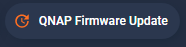
type: entity
show_name: true
show_state: false
show_icon: true
entity: sensor.mqtt_qnap_firmware_update
color: deep-orange
icon: mdi:update
state_content:
  - name
  - state
tap_action:
  action: navigate
  navigation_path: http://192.168.1.46:8123/config/dashboard
name: QNAP Firmware Update
visibility:
  - condition: state
    entity_id: sensor.mqtt_qnap_firmware_update
    state:
      - 'True'
Attachments


