As my homelab has grown over time, so has the number of places I need to look when I want to know whether everything is actually healthy. Home Assistant, Proxmox, QNAP, Frigate, MQTT, my network infrastructure and several other applications all have their own interfaces and their own way of telling me when something needs attention. That works, but I don’t want to open several different dashboards just to find out whether everything is running as expected.
My goal is therefore quite simple: anything important in my homelab should eventually be monitored from one System Health dashboard in Home Assistant. Home Assistant doesn’t necessarily have to manage or update all of those systems, but I do want it to tell me when something is offline, unhealthy or has an update waiting. For some systems this is easy because an existing Home Assistant integration already exposes exactly what I need. For others, I have to collect the information myself.
MQTT has become a very useful middle layer for this. A small script can collect information from another system, publish the results as retained MQTT topics, and Home Assistant can then consume those values just like any other sensor. This also keeps the actual monitoring logic outside Home Assistant, which I prefer. Home Assistant receives clean states and doesn’t have to know how the information was collected.
This time I wanted to extend that monitoring to my UniFi environment. My setup uses a UniFi Cloud Gateway Max with several UniFi access points and switches managed by the Network application. I wanted Home Assistant to show whether the gateway was reachable, which UniFi OS and Network versions were installed, whether a newer Network application was available, and whether any of my adopted access points or switches needed a firmware update.
There was one important requirement from the beginning: the collector had to be read-only. I want Home Assistant to tell me that an update is available, but I don’t want a monitoring script deciding when an infrastructure update should be installed. Updates remain something I install myself through UniFi.
The setup I ended up with is fairly straightforward. A Bash script running on my Proxmox server connects to the Cloud Gateway Max over SSH, collects the information and publishes it to my MQTT broker. Home Assistant subscribes to those MQTT topics and turns them into sensors that I can use in my System Health dashboard.
UniFi Cloud Gateway Max
        |
        | SSH
        v
Proxmox (unifi-update-check.sh)
        |
        | MQTT
        v
MQTT Broker
        |
        v
Home Assistant
        |
        v
System Health Dashboard
The collector runs every four hours. That is more than enough for this use case because I’m monitoring software and firmware updates, not something that needs second-by-second updates. The MQTT messages are retained, so Home Assistant immediately receives the latest information even when it restarts between two collector runs.
For reference, this is the environment I used while building and testing everything:
UniFi gateway: Cloud Gateway Max
Gateway IP: 192.168.1.1
UniFi OS: 5.1.33
UniFi Network: 10.6.x
Collector: Proxmox
MQTT broker: 192.168.1.9
Home Assistant: MQTT integration
The IP addresses obviously need to be changed to match your own environment. I also recommend testing every command manually before putting the complete collector into production. Some of the information I’m using comes from internal UniFi OS and Network components rather than a documented public API, so those parts could change in a future UniFi release.
Enabling SSH on the UniFi Cloud Gateway
The first thing I need is SSH access to the Cloud Gateway itself. This is an important distinction because UniFi has separate SSH settings for the console and for adopted devices such as access points and switches. For this project I don’t SSH directly into any of my APs or switches; everything is collected from the Cloud Gateway.
On the Cloud Gateway I enable SSH from the UniFi Control Plane under Settings → Control Plane → Console → SSH. After enabling it, I configure the SSH password that will initially be used to access the console.
The SSH username for the UniFi Console is:
root
Before doing anything with scripts or SSH keys, I first test whether I can connect normally from the Proxmox server that will eventually run the collector:
ssh root@192.168.1.1
On the first connection, SSH will probably ask whether I trust the host fingerprint. After verifying that I’m connecting to the correct IP address, I accept the fingerprint and enter the SSH password configured in the UniFi Control Plane. Once I’m logged in successfully, I simply exit again:
exit
At this point I know that the basic network connectivity, SSH service and credentials are correct. I wouldn’t continue with the rest of the configuration until this works.
Configuring passwordless SSH
The final collector will be started automatically by cron, which means there won’t be anyone around to type the UniFi SSH password every four hours. I therefore use SSH-key authentication between Proxmox and the Cloud Gateway.
I first check whether my Proxmox root account already has an SSH key:
ls -la /root/.ssh/
In my environment I already had the following files:
/root/.ssh/id_rsa
/root/.ssh/id_rsa.pub
The .pub file is the public key. The file without .pub is the private key and should never be copied around or shared.
If there isn’t an SSH key yet, one can be created with:
ssh-keygen -t rsa
For an unattended cron job, keep in mind that adding a passphrase to the private key means something still needs to unlock that key before the scheduled script can use it.
With the key available, I copy the public part to the Cloud Gateway:
ssh-copy-id -i /root/.ssh/id_rsa.pub root@192.168.1.1
This asks for the UniFi SSH password one final time. After that I can test the connection again, but this time I deliberately use BatchMode=yes:
ssh -o BatchMode=yes root@192.168.1.1 'ubnt-device-info firmware'
My Cloud Gateway Max returns:
5.1.33
More importantly, it returns that value without asking me for a password. BatchMode=yes prevents SSH from falling back to an interactive password prompt, so this is a much better test of whether the future cron job will actually work.
If this command doesn’t work without interaction, I stop here and fix SSH first. There is no point debugging MQTT, Home Assistant or the collector script when the underlying SSH connection isn’t ready for unattended use.
Checking the Cloud Gateway
With SSH working, I can start looking at the information available on the gateway. I deliberately test each piece separately first so I know exactly where the data in the final script comes from.
The installed UniFi OS version is easy to retrieve:
ssh root@192.168.1.1 'ubnt-device-info firmware'
My gateway returns:
5.1.33
There is also a more detailed summary command that is useful while testing:
ssh root@192.168.1.1 'ubnt-device-info summary'
This gives me additional device information and confirmed that the gateway is identified as a UniFi Cloud Gateway Max.
I also want to expose the gateway uptime in Home Assistant. Linux already provides this through /proc/uptime, and I only need the number of complete seconds:
ssh root@192.168.1.1 "cut -d. -f1 /proc/uptime"
The returned value will look something like this:
106289
Home Assistant can later treat this as a duration sensor.
One thing I deliberately don’t publish is a UniFi OS update_available status. I found a reliable way to retrieve the installed UniFi OS version, but I didn’t find a local read-only source that I considered reliable enough to determine the latest available UniFi OS release. Instead of assuming that no result means the gateway is up to date, I simply leave that status out. The dashboard can show the installed OS version, while actual UniFi OS update availability remains something I check through UniFi itself.
Checking the Network application
The Network application has its own version and update mechanism, separate from the UniFi OS running on the gateway. Fortunately, the uos command gives me exactly the information I need.
I first check the installed version:
ssh root@192.168.1.1 'uos application current-version unifi-native'
When I started this project, the result was:
10.6.101-35991-1
For Home Assistant I only need 10.6.101; the additional numbers are package/build information that I strip from the value later in the collector.
The next command checks whether UniFi knows about a newer Network release:
ssh root@192.168.1.1 'uos application latest-versions unifi-native --current-version $(uos application current-version unifi-native) --pretty'
While Network 10.6.101 was installed and 10.6.106 was available, this command returned release information containing:
"version": "10.6.106-36011-1"
That gives me a very clean comparison:
Current: 10.6.101
Latest: 10.6.106
Update: true
I then installed the Network update normally through the UniFi interface and repeated exactly the same tests. The installed version now returned:
10.6.106-36011-1
The interesting part was the latest-version lookup. Instead of returning 10.6.106, it returned:
{}
That caught out the first version of my collector. An empty result initially caused it to report the latest version as unknown. After checking the command manually, it became clear that on my setup the empty object means there isn’t a newer Network release to return.
The final collector therefore handles this situation explicitly. If a valid current Network version exists but the latest-version query doesn’t return a newer version, the collector uses the current version as the latest version and reports no update.
The resulting status after my update is therefore:
Current: 10.6.106
Latest: 10.6.106
Update: false
This is a good example of why I prefer to test each command independently before automating it. The original logic looked fine while an update was available, but behaved differently immediately after that update had been installed.
Finding my adopted UniFi devices
The next part is checking firmware versions for my access points and switches. The Network application keeps its device information in a local MongoDB database on the gateway. In my current environment that MongoDB instance is available locally on port 27117, with the Network data in the ace database.
I only want adopted access points and switches. The gateway itself also has a record in the database, but I don’t want to accidentally treat the Cloud Gateway as a normal firmware-managed device.
The MongoDB query I use is:
db.device.find(
  {adopted:true, type:{$in:["uap","usw"]}},
  {_id:0,name:1,model:1,version:1,type:1}
).forEach(function(d){print(JSON.stringify(d));});
To test this directly from Proxmox, I can execute it through SSH:
ssh root@192.168.1.1 'mongo --quiet --host 127.0.0.1 --port 27117 ace --eval '''db.device.find({adopted:true,type:{$in:["uap","usw"]}},{_id:0,name:1,model:1,version:1,type:1}).forEach(function(d){print(JSON.stringify(d));});'''
The four fields I care about are the device name, type, model and installed version. In this database, uap represents an access point and usw represents a switch.
In my environment the query currently finds six devices: four access points and two switches. Because the query selects adopted devices dynamically, I don’t have to hard-code their names into the collector.
Comparing the installed device firmware
Knowing the installed firmware version still doesn’t tell me whether an update exists. For that comparison I’m using the firmware catalogue maintained locally by the Network application:
/data/unifi/data/firmware.json
The MongoDB device records contain model identifiers such as:
U7PG2
U7LR
UAPA693
USM8P60
USL16LPB
Those identifiers can be matched against the release information in firmware.json. The collector reads the installed firmware from MongoDB and the available firmware from the local catalogue, then compares the two.
When both versions match, I publish:
update_available = false
When they don’t match:
update_available = true
If the collector cannot find a matching firmware entry for a device, I don’t assume that the device is current. Instead I publish:
update_available = unknown
That distinction is important for a health dashboard. false means I actually compared the versions and they match. unknown means I couldn’t make that comparison reliably.
At the time of testing, all six of my managed UniFi devices were current, so the resulting summary was six devices, zero updates and zero unknown firmware matches.
Testing MQTT
Now that I know how to retrieve everything from UniFi, the next step is getting that information into Home Assistant. I use MQTT for this, with my broker running at 192.168.1.9.
The collector needs the Mosquitto command-line tools. If they aren’t installed yet on a Debian/Proxmox host, they can be installed with:
apt update
apt install mosquitto-clients
Before involving the UniFi script at all, I test MQTT separately:
mosquitto_pub -h 192.168.1.9 -t "unifi/test" -m "working" -r
The -r option makes this a retained message. I can immediately read it back with:
mosquitto_sub -h 192.168.1.9 -t "unifi/test" -C 1
The expected result is simply:
working
Once I’ve confirmed that publishing and subscribing both work, I remove the temporary retained message:
mosquitto_pub -h 192.168.1.9 -t "unifi/test" -n -r
My MQTT broker doesn’t require additional credentials from this host. If yours does, the appropriate username/password or certificate options need to be added to both the test commands and the final script.
Creating the collector
At this point I’ve independently verified SSH, the gateway information, Network versions, adopted devices, firmware comparisons and MQTT. Only now do I combine everything.
On Proxmox I create:
nano /opt/scripts/unifi-update-check.sh
The complete script is attached as download at the bottom of this blog post.
After saving the file, I make it executable:
chmod +x /opt/scripts/unifi-update-check.sh
I still don’t schedule it at this point. First I run exactly the same script manually:
/opt/scripts/unifi-update-check.sh
With everything currently up to date, my output looks like this:
2026-09-15T22:49:20+02:00 UniFi update check completed
Gateway OS: 5.1.33
Network: 10.6.106 -> 10.6.106
Network update: false
Devices: 6
Device updates: 0
Unknown: 0
This confirms that the collector itself completed, but I also want to make sure the values really reached MQTT.
Verifying the MQTT data
The easiest way to inspect everything at once is to subscribe to the complete UniFi topic tree:
mosquitto_sub -h 192.168.1.9 -t "unifi/#" -v
Because the messages are retained, the current values should appear immediately. I can also test individual values. For example, the gateway status:
mosquitto_sub -h 192.168.1.9 -t "unifi/gateway/online" -C 1
The installed OS version:
mosquitto_sub -h 192.168.1.9 -t "unifi/gateway/os/current_version" -C 1
The Network versions:
mosquitto_sub -h 192.168.1.9 -t "unifi/network/current_version" -C 1
mosquitto_sub -h 192.168.1.9 -t "unifi/network/latest_version" -C 1
mosquitto_sub -h 192.168.1.9 -t "unifi/network/update_available" -C 1
And the overall device status:
mosquitto_sub -h 192.168.1.9 -t "unifi/devices/count" -C 1
mosquitto_sub -h 192.168.1.9 -t "unifi/devices/update_count" -C 1
mosquitto_sub -h 192.168.1.9 -t "unifi/devices/unknown_count" -C 1
mosquitto_sub -h 192.168.1.9 -t "unifi/devices/update_available" -C 1
Every adopted device also has its own MQTT branch. For example:
mosquitto_sub -h 192.168.1.9 -t "unifi/devices/uap-ac-pro-garage/#" -v
This returns information such as:
unifi/devices/uap-ac-pro-garage/name UAP-AC-PRO-Garage
unifi/devices/uap-ac-pro-garage/type uap
unifi/devices/uap-ac-pro-garage/model U7PG2
unifi/devices/uap-ac-pro-garage/current_version 6.8.2.15592
unifi/devices/uap-ac-pro-garage/latest_version 6.8.2.15592
unifi/devices/uap-ac-pro-garage/update_available false
In addition to the individual topics, I publish the entire device collection as one JSON object. This turned out to be particularly useful for Home Assistant because I can use it to dynamically build a device overview without creating separate Home Assistant entities for every firmware value.
I can inspect that payload with:
mosquitto_sub -h 192.168.1.9 -t "unifi/devices/details" -C 1
A shortened, formatted example looks like this:
{
  "count": 6,
  "update_count": 0,
  "unknown_count": 0,
  "devices": [
    {
      "name": "UAP-AC-PRO-Garage",
      "type": "uap",
      "model": "U7PG2",
      "current_version": "6.8.2.15592",
      "latest_version": "6.8.2.15592",
      "update_available": false
    }
  ]
}
The actual MQTT message is compact JSON, but the information is the same.
Finally, the collector publishes the timestamp of the last successful run:
mosquitto_sub -h 192.168.1.9 -t "unifi/last_check" -C 1
That timestamp becomes important later because retained MQTT messages can otherwise make old data look current.
Running the collector automatically
Once both the script and its MQTT output have been verified manually, I schedule it with cron. I edit the root crontab on Proxmox:
crontab -e
My collector runs every four hours at 15 minutes past the hour:
15 */4 * * * /opt/scripts/unifi-update-check.sh >> /var/log/unifi-update-check.log 2>&1
That means it runs at 00:15, 04:15, 08:15, 12:15, 16:15 and 20:15. The output is also written to a logfile, which makes troubleshooting a failed scheduled run much easier.
I can inspect the latest runs with:
tail -100 /var/log/unifi-update-check.log
For update monitoring, checking every four hours is more than enough for me. There is no benefit in querying the gateway every minute just to discover a firmware release a little earlier.
Bringing the information into Home Assistant
My MQTT configuration is stored in config_mqtt.yaml, which is already included underneath mqtt: from my main Home Assistant configuration. I add the following sensors to the existing sensor: section:
sensor:
  - name: "UniFi Gateway OS Version"
    unique_id: unifi_gateway_os_version
    state_topic: "unifi/gateway/os/current_version"
    icon: mdi:router-network

  - name: "UniFi Gateway Uptime"
    unique_id: unifi_gateway_uptime
    state_topic: "unifi/gateway/uptime_seconds"
    device_class: duration
    unit_of_measurement: "s"
    state_class: measurement
    icon: mdi:timer-outline

  - name: "UniFi Network Current Version"
    unique_id: unifi_network_current_version
    state_topic: "unifi/network/current_version"
    icon: mdi:lan

  - name: "UniFi Network Latest Version"
    unique_id: unifi_network_latest_version
    state_topic: "unifi/network/latest_version"
    icon: mdi:lan-check

  - name: "UniFi Device Count"
    unique_id: unifi_device_count
    state_topic: "unifi/devices/count"
    state_class: measurement
    icon: mdi:devices

  - name: "UniFi Device Updates"
    unique_id: unifi_device_updates
    state_topic: "unifi/devices/update_count"
    state_class: measurement
    icon: mdi:update

  - name: "UniFi Device Firmware Unknown"
    unique_id: unifi_device_firmware_unknown
    state_topic: "unifi/devices/unknown_count"
    state_class: measurement
    icon: mdi:help-circle-outline

  - name: "UniFi Last Check"
    unique_id: unifi_last_check
    state_topic: "unifi/last_check"
    device_class: timestamp
    icon: mdi:clock-check-outline

  - name: "UniFi Device Details"
    unique_id: unifi_device_details
    state_topic: "unifi/devices/details"
    value_template: "{{ value_json.count }}"
    json_attributes_topic: "unifi/devices/details"
    icon: mdi:devices
I also add three binary sensors:
binary_sensor:
  - name: "UniFi Gateway Online"
    unique_id: unifi_gateway_online
    state_topic: "unifi/gateway/online"
    payload_on: "true"
    payload_off: "false"
    device_class: connectivity
    icon: mdi:router-network

  - name: "UniFi Network Update Available"
    unique_id: unifi_network_update_available
    state_topic: "unifi/network/update_available"
    payload_on: "true"
    payload_off: "false"
    icon: mdi:update

  - name: "UniFi Device Update Available"
    unique_id: unifi_device_update_available
    state_topic: "unifi/devices/update_available"
    payload_on: "true"
    payload_off: "false"
    icon: mdi:update
If sensor: or binary_sensor: already exists in the same MQTT include, I obviously don’t add a second copy of that heading. The UniFi definitions simply go underneath the existing section.
After reloading the configuration or restarting Home Assistant, I check Developer Tools → States before doing anything with my dashboard. I want to see the raw entities working first.
The resulting entities are:
sensor.unifi_gateway_os_version
sensor.unifi_gateway_uptime
sensor.unifi_network_current_version
sensor.unifi_network_latest_version
sensor.unifi_device_count
sensor.unifi_device_updates
sensor.unifi_device_firmware_unknown
sensor.unifi_last_check
sensor.unifi_device_details
binary_sensor.unifi_gateway_online
binary_sensor.unifi_network_update_available
binary_sensor.unifi_device_update_available
sensor.unifi_device_details is slightly different from the other sensors. Its state is simply the number of devices, which is 6 in my case, while its attributes contain the complete device array received through MQTT. That makes it particularly useful for building a dynamic device table in the dashboard.
Making sure retained MQTT data doesn’t fool me
Retained MQTT messages are extremely useful here, but there is one downside that is easy to overlook. Imagine the collector successfully publishes:
unifi/gateway/online = true
If the collector itself then stops running for several days, that retained true message is still sitting on the MQTT broker. Home Assistant could therefore continue showing the gateway as online even though the monitoring data hasn’t been refreshed.
This is why the collector also publishes unifi/last_check. It only updates that timestamp after a successful collection. If SSH to the gateway fails, the script publishes unifi/gateway/online = false and exits without changing the last successful timestamp.
Because my collector runs every four hours, I can consider its data stale when there hasn’t been a successful update for more than five hours. I use a template binary sensor for that:
template:
  - binary_sensor:
      - name: "UniFi Collector Stale"
        unique_id: unifi_collector_stale
        state: >
          {% set last = states('sensor.unifi_last_check') %}
          {% if last in ['unknown', 'unavailable', 'none', ''] %}
            true
          {% else %}
            {{ (as_timestamp(now()) - as_timestamp(last)) > 5 * 3600 }}
          {% endif %}
        device_class: problem
This configuration belongs under Home Assistant’s template: configuration rather than inside a file that is included directly underneath mqtt:.
Using the data in my System Health dashboard
At this point the original goal is achieved: Home Assistant has enough information to decide whether my UniFi environment needs attention.
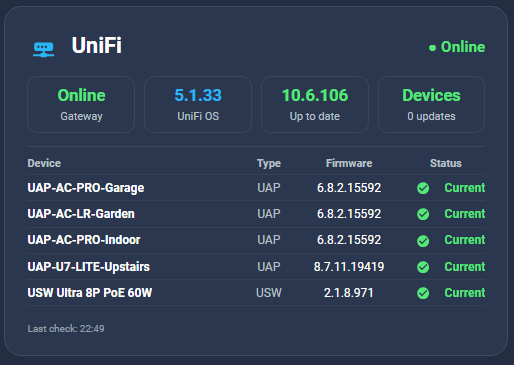
I use the data at several levels in my System Health dashboard. The small overview card only needs to answer whether UniFi currently requires attention. If the gateway is unreachable, that’s obviously a problem. If either the Network application or one of the managed devices has an update available, the status changes accordingly. When everything is reachable and current, it simply shows that there are no updates.
I also use the same information in my larger health overview alongside the other systems in my homelab. When Network 10.6.106 was available while I was building this solution, UniFi showed an update status there. After installing 10.6.106 through the normal UniFi interface and running the collector again, the status automatically returned to green.
For the detailed UniFi card I show the gateway connection, installed UniFi OS version, Network version and the number of managed devices. Underneath that I use the devices attribute from sensor.unifi_device_details to display the individual access points and switches with their firmware status. Because the device list comes from MongoDB dynamically, I don’t have to edit the dashboard every time I replace or add a UniFi device.
The last successful collector timestamp is also shown on the card. That gives me an immediate indication of whether I’m looking at fresh information rather than trusting a retained MQTT state indefinitely.
Troubleshooting the individual parts
If something stops working, I try to troubleshoot the chain in the same order in which I built it. There is little value in debugging Home Assistant when the collector can’t even connect to the gateway.
For SSH, I use the same non-interactive command that the collector relies on:
ssh -o BatchMode=yes -o ConnectTimeout=10 root@192.168.1.1 'ubnt-device-info firmware'
If that doesn’t return the installed UniFi OS version without asking for a password, I know the problem is somewhere in the SSH connection or key authentication.
If the Network update information looks wrong, I check both commands manually:
ssh root@192.168.1.1 'uos application current-version unifi-native'
ssh root@192.168.1.1 'uos application latest-versions unifi-native --current-version $(uos application current-version unifi-native) --pretty'
An empty object from the second command can be normal when there isn’t a newer Network version. The final collector already handles that situation.
If one of the managed devices shows an unknown firmware status, I first check whether it appears in the Network database:
ssh root@192.168.1.1 'mongo --quiet --host 127.0.0.1 --port 27117 ace --eval '''db.device.find({adopted:true,type:{$in:["uap","usw"]}},{_id:0,name:1,model:1,version:1,type:1}).forEach(function(d){print(JSON.stringify(d));});'''
If the device is there, the next thing to investigate is whether its model identifier can be matched to the release catalogue in:
/data/unifi/data/firmware.json
For MQTT problems, I go back to the simplest possible test rather than debugging the entire collector:
mosquitto_pub -h 192.168.1.9 -t "unifi/test" -m "working" -r
mosquitto_sub -h 192.168.1.9 -t "unifi/test" -C 1
If that works, I can inspect the complete UniFi topic tree:
mosquitto_sub -h 192.168.1.9 -t "unifi/#" -v
Finally, if everything works when I manually run the collector but Home Assistant isn’t receiving new values every four hours, I check the cron logfile:
tail -100 /var/log/unifi-update-check.log
and compare that with the last successful timestamp:
mosquitto_sub -h 192.168.1.9 -t "unifi/last_check" -C 1
Working through SSH, UniFi, MQTT and finally Home Assistant in that order makes it much easier to isolate where something has gone wrong.
A final note about what this script does — and doesn’t do
This setup requires root SSH access to the Cloud Gateway, so I treat that access with care. The private SSH key stays on my Proxmox host, and the collector uses BatchMode=yes and a connection timeout so it doesn’t sit waiting for interactive input.
More importantly, the collector is designed to observe, not update. It reads the gateway version, uptime, Network version, device records and firmware catalogue. It doesn’t trigger firmware installations, update the Network application, reboot devices or modify the UniFi configuration.
The MongoDB database and firmware.json file are also worth mentioning again. They’re internal parts of the Network application rather than a public API that I would expect Ubiquiti to keep unchanged forever. This works on my Cloud Gateway Max with the versions described here, but after a major UniFi OS or Network upgrade I will keep an eye on the collector to make sure those internal sources still behave the same way.
With everything in place, UniFi is now simply another part of my homelab that reports into the same System Health dashboard as the rest of my infrastructure. The gateway status, Network application and firmware state of my access points and switches are collected automatically, MQTT provides a clean separation between the systems, and Home Assistant turns that information into something I can immediately act on.
That’s ultimately what I wanted from this project. I don’t want to regularly open every management interface in my homelab just to discover whether something needs attention. If everything is fine, my System Health dashboard should tell me that at a glance. If something changes, I want that same dashboard to be the place where I notice it.
Attachments