Introduction
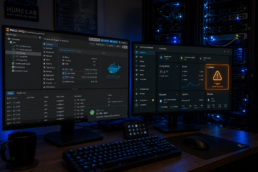
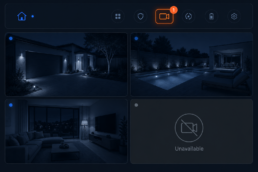
Running Frigate NVR on Proxmox with a Google Coral USB TPU is a powerful combination for local AI-based object detection. However, getting it working correctly — especially inside an LXC container with Docker — involves a number of non-obvious steps. In this post, I’ll walk through the complete setup, config, and troubleshooting steps that took my setup from broken to fully operational with 7 cameras, Coral TPU detection at 1% GPU usage, and recordings going directly to a QNAP NAS.
The Setup
My hardware and software stack:
- Proxmox host: Intel i5-1135G7 (8 threads, 2.4GHz), 32GB RAM, Intel Xe iGPU
- Frigate LXC: Debian 12, 4GB RAM, 4 cores, 20GB root disk
- Detector: Google Coral USB TPU (plugged directly into Proxmox host)
- Cameras: 7x Reolink cameras (P760 TrackMix, P850, P330, P324 x2, Video Doorbell, E1 4K WiFi) on VLAN 10
- Storage: QNAP NAS via NFS mount at
/mnt/qnap - Home Assistant: Running on separate VM at 192.168.1.46
Why Frigate Instead of BlueIris?
Previously I was running BlueIris on a Windows 11 Pro VM on Proxmox. It worked, but it was heavyweight — a full Windows VM just to run camera software. Frigate runs in a lightweight Debian LXC container, uses a fraction of the resources, integrates natively with Home Assistant, and supports the Google Coral TPU for fast local AI detection. Once Frigate was stable, the Win11Pro VM was shut down entirely.
Frigate Installation on Proxmox LXC
Frigate runs as a Docker container inside a Debian 12 LXC. The LXC was created using the Frigate Proxmox Script by saihgupr, which handles the Docker install and initial compose file setup.
Key LXC settings in /etc/pve/lxc/115.conf for GPU and USB access:
lxc.cgroup2.devices.allow: c 226:* rwm
lxc.mount.entry: /dev/dri dev/dri none bind,optional,create=dir
lxc.apparmor.profile: unconfined
lxc.cgroup2.devices.allow: c 189:* rwm
lxc.mount.entry: /dev/bus/usb dev/bus/usb none bind,optional,create=dir 0,0
usb: vendorid=0x18d1,productid=0x9302
usb: vendorid=0x1a6e,productid=0x089a
The two usb: lines are critical — they pass the Coral through by vendor/product ID rather than by device path, which means it survives reboots even when the USB device number changes. The 1a6e:089a is the Coral in its uninitialized state, and 18d1:9302 is after it has been initialized by the EdgeTPU runtime.
Docker Compose Configuration
The docker-compose.yml needs two important device entries — the Intel iGPU for hardware video decoding, and the full USB bus for the Coral:
version: "3.9"
services:
  frigate:
    container_name: frigate
    restart: unless-stopped
    image: ghcr.io/blakeblackshear/frigate:stable
    volumes:
      - ./config:/config
      - /mnt/qnap:/media/frigate
      - type: tmpfs
        target: /tmp/cache
        tmpfs:
          size: 1000000000
    ports:
      - "5000:5000"
      - "8554:8554"
      - "8555:8555/tcp"
      - "8555:8555/udp"
      - "1984:1984"
      - "8971:8971"
    devices:
      - /dev/dri/renderD128:/dev/dri/renderD128
      - /dev/bus/usb:/dev/bus/usb
    environment:
      - FRIGATE_RTSP_PASSWORD=password
      - CONFIG_FILE=/config/config.yml
    cap_add:
      - CAP_PERFMON
    shm_size: "512mb"
Note the storage mount: /mnt/qnap:/media/frigate — this points recordings directly at the QNAP NAS NFS mount. The media_path config option was removed in Frigate 0.17, so this Docker volume mount is the correct way to set the recording destination.
Frigate config.yml
Here is the complete working config.yml for 7 Reolink cameras with Coral TPU detection:
mqtt:
  enabled: true
  host: 192.168.1.9
  port: 1883
  topic_prefix: frigate
  client_id: frigate
  stats_interval: 60

ffmpeg:
  global_args: -hide_banner -loglevel warning
  hwaccel_args: []
  input_args: preset-rtsp-restream
  output_args:
    record: preset-record-generic-audio-aac

detectors:
  coral:
    type: edgetpu
    device: usb

database:
  path: /config/frigate.db

detect:
  width: 1280
  height: 720
  fps: 5
  enabled: true

objects:
  track:
    - person
    - animal
    - cat
    - dog
  filters:
    person:
      min_area: 1500
      min_score: 0.6
      threshold: 0.7
    animal:
      min_area: 1000
      min_score: 0.5
      threshold: 0.6

record:
  enabled: true
  retain:
    days: 3
    mode: motion
  alerts:
    retain:
      days: 10
  detections:
    retain:
      days: 10

snapshots:
  enabled: true
  retain:
    default: 10
  bounding_box: true

go2rtc:
  streams:
    doorbell:
      - rtsp://user:pass@192.168.10.13:554/Preview_01_main
    driveway:
      - rtsp://user:pass@192.168.10.15:554/Preview_01_main
    garden:
      - rtsp://user:pass@192.168.10.17:554/Preview_01_main
    garage_back:
      - rtsp://user:pass@192.168.10.12:554/Preview_01_main
    dryroom:
      - rtsp://user:pass@192.168.10.14:554/Preview_01_main
    hallway:
      - rtsp://user:pass@192.168.10.16:554/Preview_01_main
    e1_wifi:
      - rtsp://user:pass@192.168.10.18:554/Preview_01_main

cameras:
  doorbell:
    enabled: true
    ffmpeg:
      inputs:
        - path: rtsp://user:pass@192.168.10.13:554/Preview_01_main
          roles: [record]
        - path: rtsp://user:pass@192.168.10.13:554/Preview_01_sub
          roles: [detect, audio]
    detect:
      width: 896
      height: 512
      fps: 5

  driveway:
    enabled: true
    ffmpeg:
      inputs:
        - path: rtsp://user:pass@192.168.10.15:554/Preview_01_main
          roles: [record]
        - path: rtsp://user:pass@192.168.10.15:554/Preview_01_sub
          roles: [detect, audio]
    objects:
      track: [person, animal, dog, cat, car]

  garden:
    enabled: true
    ffmpeg:
      inputs:
        - path: rtsp://user:pass@192.168.10.17:554/Preview_01_main
          roles: [record]
        - path: rtsp://user:pass@192.168.10.17:554/Preview_01_sub
          roles: [detect]

  garage_back:
    enabled: true
    ffmpeg:
      inputs:
        - path: rtsp://user:pass@192.168.10.12:554/Preview_01_main
          roles: [record]
        - path: rtsp://user:pass@192.168.10.12:554/Preview_01_sub
          roles: [detect]
    objects:
      track: [person, animal, dog, cat, car]

  dryroom:
    enabled: true
    ffmpeg:
      inputs:
        - path: rtsp://user:pass@192.168.10.14:554/Preview_01_main
          roles: [record]
        - path: rtsp://user:pass@192.168.10.14:554/Preview_01_sub
          roles: [detect]

  hallway:
    enabled: true
    ffmpeg:
      inputs:
        - path: rtsp://user:pass@192.168.10.16:554/Preview_01_main
          roles: [record]
        - path: rtsp://user:pass@192.168.10.16:554/Preview_01_sub
          roles: [detect]

  e1_wifi:
    enabled: true
    ffmpeg:
      inputs:
        - path: rtsp://user:pass@192.168.10.18:554/Preview_01_main
          roles: [record]
        - path: rtsp://user:pass@192.168.10.18:554/Preview_01_sub
          roles: [detect]
    detect:
      width: 640
      height: 480
      fps: 5

version: 0.17-0
Key Pitfalls and Fixes
1. Windows Line Endings (CRLF) Breaking YAML
If you paste config content from a Windows machine, you’ll get rn line endings that break YAML parsing with the cryptic error mapping values are not allowed in this context. Fix it with:
sed -i 's/r//' /opt/frigate/config/config.yml2. Heredoc Artifacts in Config
Using cat > file << 'EOF' to write configs can leave the command itself or the EOF marker inside the file if something goes wrong. Always verify with cat -A config.yml | head -5 and clean up with:
sed -i '/^cat > /d' /opt/frigate/config/config.yml
sed -i '/^EOF$/d' /opt/frigate/config/config.yml
3. Coral USB Device Number Changes
The Coral USB changes its vendor ID after initialization (from 1a6e:089a to 18d1:9302) and also changes its device number on every reboot. Binding by device path (/dev/bus/usb/003/041) will break after reboot. The correct solution is to use vendor ID passthrough in the Proxmox LXC config:
usb: vendorid=0x18d1,productid=0x9302
usb: vendorid=0x1a6e,productid=0x089a
4. Coral USB Must Be Plugged Directly Into the Host
The Coral USB does not work reliably through a powered USB hub — even a good quality one. Plug it directly into a USB 3.0 port on the Proxmox server. This was the cause of several hours of debugging where the device was simply invisible to the host.
5. OpenVINO Detector Hangs Inside LXC
The Intel OpenVINO GPU detector (type: openvino, device: GPU) causes Frigate’s watchdog to repeatedly kill and restart the detection process when running inside a Proxmox LXC. The iGPU passthrough works for video decoding but not reliably for OpenVINO inference inside nested containers. Use the Coral instead, or fall back to CPU detection (type: cpu) if you don’t have a Coral.
6. media_path Removed in Frigate 0.17
The media_path top-level config option was removed in Frigate 0.17. Set your recording destination via the Docker volume mount instead: /your/nas/path:/media/frigate in docker-compose.yml.
7. Don’t Use the Frigate HA Add-on With an External Frigate Instance
If Frigate runs as a standalone VM or LXC, do not install the Frigate Full Access add-on in Home Assistant — it will try to run its own Frigate instance and cause HA to hang. Instead, install only the Frigate integration (Settings → Devices & Services) and point it at your external instance IP. The integration provides all HA entities, automations, and MQTT events without running a duplicate Frigate process.
Results
After completing this setup:
- 7 cameras running stable, direct from Reolink (no BlueIris middleman)
- Google Coral TPU handling all detection at Intel GPU 0%, CPU ~35% (CPU is just ffmpeg decoding)
- Recordings going directly to QNAP NAS via NFS
- Survives LXC reboots with Coral auto-detected on startup
- Full Home Assistant integration for automations, alerts, and AI descriptions
- Win11Pro/BlueIris VM decommissioned, freeing significant RAM on the Proxmox host
Conclusion
Running Frigate with a Coral TPU on Proxmox LXC is absolutely worth the setup effort. The combination delivers fast, local, private AI detection with minimal resource usage. The main gotchas are around the Coral USB passthrough (use vendor IDs, not device paths, and plug directly into the host) and the Frigate 0.17 config changes. Hopefully this post saves you the hours of debugging it took to figure these out.

Related Posts
October 7, 2026
Google Coral USB Slow in Frigate? My USB Cable Was the Bottleneck
A slow USB cable kept my Coral at USB 2…