I recently released two of my own Android apps on GitHub: InstallWatchdog, which taps Install for Kiosk Satellite updates on my wall tablets, and RawMover, which keeps long raw phone videos out of my NAS sync. Once they were out there, I naturally wanted to know whether anyone actually downloads them.
GitHub does track release downloads, and shields.io can turn that into a badge, but I didn’t want to go looking for a badge. My Home Assistant dashboard already has a Rutg3r view with my WordPress, Facebook and YouTube stats, so the download counters belong right there. In this post I’ll show how I pull the GitHub release download totals into Home Assistant with two REST sensors and a small branded dashboard card.
Where the numbers come from
The shields.io download badge is just a wrapper around the GitHub API, so I went to the source directly. The releases endpoint returns every release of a repository, and every attached file (asset) has its own download_count:
https://api.github.com/repos/rutgerbockholts/InstallWatchdog/releases?per_page=100
Add up the download_count of every asset in every release and you get exactly the total that the badge shows.
- No token needed: unauthenticated requests are allowed up to 60 per hour per IP address
- Polling two repositories once an hour is only 48 requests a day
per_page=100makes sure older releases are included, because the API returns only 30 by default
Step 1: The REST sensors
My configuration.yaml includes a separate config_rest.yaml for all REST sensors, so I added one resource per repository there. GitHub requires a User-Agent header, and the Jinja template loops over all releases and assets to sum the downloads:
- resource: https://api.github.com/repos/rutgerbockholts/InstallWatchdog/releases?per_page=100
  scan_interval: 3600
  headers:
    Accept: application/vnd.github+json
    User-Agent: HomeAssistant
  sensor:
    - name: "Github Downloads InstallWatchdog"
      unique_id: github_downloads_installwatchdog
      icon: mdi:download
      state_class: total_increasing
      unit_of_measurement: downloads
      value_template: >
        {% set ns = namespace(t=0) %}
        {% for r in value_json %}{% for a in r.assets %}
          {% set ns.t = ns.t + a.download_count %}
        {% endfor %}{% endfor %}
        {{ ns.t }}

- resource: https://api.github.com/repos/rutgerbockholts/RawMover/releases?per_page=100
  scan_interval: 3600
  headers:
    Accept: application/vnd.github+json
    User-Agent: HomeAssistant
  sensor:
    - name: "Github Downloads RawMover"
      unique_id: github_downloads_rawmover
      icon: mdi:download
      state_class: total_increasing
      unit_of_measurement: downloads
      value_template: >
        {% set ns = namespace(t=0) %}
        {% for r in value_json %}{% for a in r.assets %}
          {% set ns.t = ns.t + a.download_count %}
        {% endfor %}{% endfor %}
        {{ ns.t }}
After a reload of the RESTful entities (Developer Tools > YAML), I have two new sensors: sensor.github_downloads_installwatchdog and sensor.github_downloads_rawmover.
Because of state_class: total_increasing, Home Assistant also keeps long-term statistics for them. That means I can later add a statistics graph showing new downloads per week or month, without changing anything to the sensors.
Step 2: A branded GitHub card
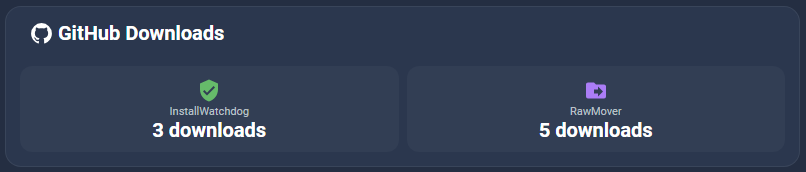
A plain tile card worked, but it didn’t match the rest of my Rutg3r view. So I built a separate card in the same style as my Facebook and YouTube cards: a GitHub header with two tiles underneath. It uses button-card, plus custom:mod-card from card-mod for the rounded card styling.
Tapping the header opens my GitHub profile, and tapping a tile opens the Releases page of that app:
type: custom:mod-card
card_mod:
  style: |
    ha-card {
      border-radius: 16px;
      background: var(--card-background-color);
      border: 1px solid rgba(255,255,255,0.07);
      box-shadow: none;
      padding: 14px;
    }
card:
  type: vertical-stack
  cards:
    - type: custom:button-card
      name: GitHub Downloads
      icon: mdi:github
      show_state: false
      tap_action:
        action: url
        url_path: https://github.com/rutgerbockholts
      styles:
        card:
          - background: none
          - box-shadow: none
          - padding: 0 4px 12px 4px
        grid:
          - grid-template-areas: '"i n"'
          - grid-template-columns: 34px 1fr
        icon:
          - width: 25px
          - color: var(--primary-text-color)
        name:
          - justify-self: start
          - font-size: 20px
          - font-weight: 600
    - type: grid
      columns: 2
      square: false
      cards:
        - type: custom:button-card
          entity: sensor.github_downloads_installwatchdog
          name: InstallWatchdog
          icon: mdi:shield-check
          show_state: true
          tap_action:
            action: url
            url_path: https://github.com/rutgerbockholts/InstallWatchdog/releases
          styles:
            card:
              - height: 86px
              - border-radius: 12px
              - background: rgba(255,255,255,0.035)
              - box-shadow: none
              - padding: 10px
            icon:
              - width: 24px
              - color: "#66BB6A"
            name:
              - font-size: 11px
              - color: var(--secondary-text-color)
            state:
              - font-size: 20px
              - font-weight: 600
        - type: custom:button-card
          entity: sensor.github_downloads_rawmover
          name: RawMover
          icon: mdi:folder-move
          show_state: true
          tap_action:
            action: url
            url_path: https://github.com/rutgerbockholts/RawMover/releases
          styles:
            card:
              - height: 86px
              - border-radius: 12px
              - background: rgba(255,255,255,0.035)
              - box-shadow: none
              - padding: 10px
            icon:
              - width: 24px
              - color: "#AB7DF6"
            name:
              - font-size: 11px
              - color: var(--secondary-text-color)
            state:
              - font-size: 20px
              - font-weight: 600
Wrapping up
Two REST sensors and one card, and I can now see at a glance how my apps are doing, right next to my blog and social stats. The counters are still small, but it’s fun to watch them go up after a new blog post or video.
Want to try the apps yourself? You can find both on GitHub:
The same approach works for any public GitHub repository, so if you publish your own projects, just change the owner and repository in the resource URL.