A while ago I added a WordPress card to my Home Assistant dashboard that tells me when rutg3r.com has pending plugin or core updates (Monitor WordPress Updates in Home Assistant). It works great, but it left me with a new annoyance: the badge turned orange, and then nothing happened for hours.
I have WordPress auto-updates enabled for my plugins, so why the wait? WordPress only checks for updates twice a day, through a scheduled WP-Cron event, and the auto-updater runs as part of that same check. My Home Assistant sensor asks for updates every hour, so it can spot a new plugin version up to 12 hours before WordPress gets around to installing it. In the meantime my dashboard keeps telling me there’s work to do.
So I did the same thing I did for Immich and Frigate: I put an UPDATE button right on the card. One tap, a confirmation, and a few seconds later the plugins are updated and the badge is green again.
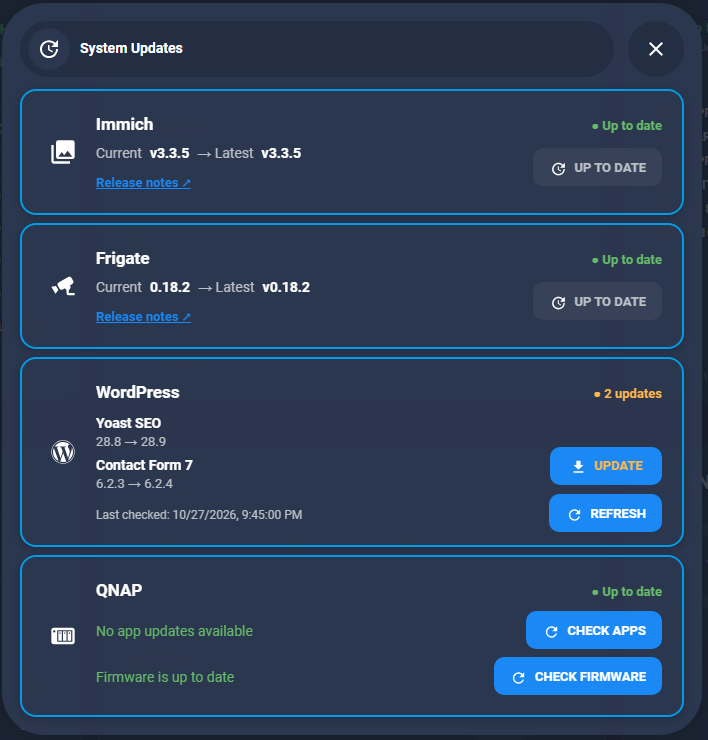
This is my update section on the System dashboard, with WordPress now working the same way as the other cards:
How it fits together
- A small token-protected REST route on my WordPress site installs every plugin that has a pending update.
- A
rest_commandin Home Assistant calls that route. - A script runs the
rest_command, refreshes the WordPress updates sensor, and only notifies me if something failed. - An orange UPDATE pill on my existing WordPress card runs the script. It only shows up when there are plugin updates waiting.
Step 1: Generate a secret token
The route can install code on my site, so it needs a proper secret. I generate a random 48-character token once:
openssl rand -hex 24
No OpenSSL at hand? Python works too:
python3 -c "import secrets; print(secrets.token_hex(24))"
The token goes in two places: the PHP file on the WordPress side (step 2) and secrets.yaml in Home Assistant (step 3). Never put it in a dashboard card or a script, because those are easy to share by accident.
My earlier update sensor passes its token as a query parameter. This time the token travels in an HTTP header (X-HA-Token), so it doesn’t end up in web server access logs.
Step 2: The REST route on WordPress
Save this as wp-content/mu-plugins/ha-run-updates.php. Must-use plugins load automatically and can’t be switched off by accident from the plugins screen. Replace the placeholder with your token.
<?php
/**
 * Home Assistant - run pending plugin updates on demand.
 *
 * POST /wp-json/rutger/v1/run-updates
 * Header: X-HA-Token: <token>
 */

if ( ! defined( 'ABSPATH' ) ) {
    exit;
}

define( 'RUTGER_HA_UPDATE_TOKEN', 'YOUR_SECRET_TOKEN' );

add_action( 'rest_api_init', function () {
    register_rest_route( 'rutger/v1', '/run-updates', [
        'methods'             => 'POST',
        'permission_callback' => function ( WP_REST_Request $request ) {
            $token = (string) $request->get_header( 'x-ha-token' );
            return $token !== '' && hash_equals( RUTGER_HA_UPDATE_TOKEN, $token );
        },
        'callback'            => 'rutger_ha_run_plugin_updates',
    ] );
} );

function rutger_ha_run_plugin_updates() {
    if ( get_transient( 'rutger_ha_updating' ) ) {
        return new WP_REST_Response( [ 'status' => 'busy' ], 409 );
    }
    set_transient( 'rutger_ha_updating', 1, 15 * MINUTE_IN_SECONDS );

    @set_time_limit( 600 );
    wp_set_current_user( 1 );

    require_once ABSPATH . 'wp-admin/includes/admin.php';
    require_once ABSPATH . 'wp-admin/includes/class-wp-upgrader.php';

    wp_clean_plugins_cache( true );
    wp_update_plugins();

    $transient = get_site_transient( 'update_plugins' );
    $pending   = ! empty( $transient->response ) ? $transient->response : [];

    if ( empty( $pending ) ) {
        delete_transient( 'rutger_ha_updating' );
        return [ 'status' => 'nothing_to_update', 'updated' => [], 'failed' => [] ];
    }

    $before = [];
    foreach ( array_keys( $pending ) as $file ) {
        $data            = get_plugin_data( WP_PLUGIN_DIR . '/' . $file, false, false );
        $before[ $file ] = [ 'name' => $data['Name'], 'from' => $data['Version'], 'to' => $pending[ $file ]->new_version ];
    }

    $upgrader = new Plugin_Upgrader( new Automatic_Upgrader_Skin() );
    $results  = $upgrader->bulk_upgrade( array_keys( $pending ) );

    wp_clean_plugins_cache( true );
    wp_update_plugins();

    $updated = [];
    $failed  = [];
    foreach ( $before as $file => $info ) {
        $result = is_array( $results ) && isset( $results[ $file ] ) ? $results[ $file ] : false;
        if ( is_wp_error( $result ) || false === $result || null === $result ) {
            $info['error'] = is_wp_error( $result ) ? $result->get_error_message() : 'unknown error';
            $failed[]      = $info;
        } else {
            $updated[] = $info;
        }
    }

    delete_transient( 'rutger_ha_updating' );

    return [
        'status'  => empty( $failed ) ? 'ok' : 'partial',
        'updated' => $updated,
        'failed'  => $failed,
        'ran_at'  => gmdate( 'c' ),
    ];
}
A few things worth knowing about this code:
- Security:
permission_callbackrejects any request without the right token with a 401, before any update code runs.hash_equals()compares the token without leaking timing information. - No double runs: a short-lived transient acts as a lock. If I tap twice, the second request gets a 409 “busy” instead of starting a second update run.
- WordPress’s own upgrader: it uses the same
Plugin_Upgraderthat the WP admin uses, including maintenance mode while files are replaced.Automatic_Upgrader_Skinkeeps it quiet, so it returns JSON instead of HTML output. - User ID:
wp_set_current_user( 1 )runs the update as user ID 1. If your administrator has a different ID, change it. - Plugins only: WordPress core and themes are left alone. I still want to do a core update myself, with a backup first.
You can test the route from any terminal. A wrong token should give 401; the real one returns JSON:
curl -X POST -H "X-HA-Token: YOUR_SECRET_TOKEN" https://your-site.com/wp-json/rutger/v1/run-updates
{"status":"nothing_to_update","updated":[],"failed":[]}
Step 3: The rest_command in Home Assistant
In secrets.yaml:
rutg3r_update_token: YOUR_SECRET_TOKEN
In configuration.yaml:
rest_command:
  rutg3r_run_plugin_updates:
    url: https://rutg3r.com/wp-json/rutger/v1/run-updates
    method: POST
    headers:
      X-HA-Token: !secret rutg3r_update_token
    timeout: 300
The 300-second timeout gives a batch of large plugins enough time. Reload REST commands from the YAML tab in Developer Tools.
Step 4: The script
The script runs the rest_command, refreshes the sensor so the badge updates straight away, and only creates a notification when something went wrong. A normal update needs no message, since the card turning green says enough.
alias: WordPress - Run plugin updates
icon: mdi:wordpress
mode: single
sequence:
  - alias: Run updates on rutg3r.com
    action: rest_command.rutg3r_run_plugin_updates
    response_variable: wp_result
    continue_on_error: true
  - alias: Refresh the updates sensor
    action: homeassistant.update_entity
    target:
      entity_id: sensor.wordpress_updates
  - alias: Notify only on failure
    if:
      - condition: template
        value_template: >
          {{ wp_result is not defined or wp_result.status != 200
             or (wp_result.content.failed | default([]) | length > 0) }}
    then:
      - action: persistent_notification.create
        data:
          notification_id: wordpress_plugin_updates
          title: WordPress plugin update failed
          message: >
            {% if wp_result is not defined %}Update call failed, check the HA log.
            {% elif wp_result.status != 200 %}Update call failed (HTTP {{ wp_result.status }}).
            {% else %}Failed: {{ wp_result.content.failed | map(attribute='name') | join(', ') }}{% endif %}
mode: single and the lock on the WordPress side together make sure an impatient double tap can’t start two runs.
Step 5: The UPDATE pill on the card
I didn’t want a separate card for this, so I added the button to my existing WordPress card from the earlier post. It’s a nested button-card in a new update custom field. It only shows up when there are plugin updates, and it shows UPDATING… while the script runs. These are the parts I added:
styles:
  grid:
    - grid-template-areas: '"i n status" "i updates update" "i checked refresh"'
  custom_fields:
    update:
      - justify-self: end
      - align-self: end
      - margin-bottom: 10px
      - display: >
          [[[ return (entity?.attributes?.plugin_updates || []).length ? 'block' : 'none' ]]]
custom_fields:
  update:
    card:
      type: custom:button-card
      template: pill_button
      entity: script.wordpress_run_plugin_updates
      icon: mdi:download
      name: |
        [[[ return entity?.state === 'on' ? 'UPDATING…' : 'UPDATE' ]]]
      tap_action:
        action: perform-action
        perform_action: script.wordpress_run_plugin_updates
        confirmation:
          text: Install all pending plugin updates on rutg3r.com?
      styles:
        card:
          - width: 112px
          - pointer-events: >
              [[[ return entity?.state === 'on' ? 'none' : 'auto' ]]]
        name:
          - color: '#ffb74d'
pill_button is my own button-card template for the small rounded buttons on my dashboard. Any compact button-card style works here. The orange label matches the amber “● 1 update” status, so it reads as the action belonging to that badge. When only a WordPress core update is pending, the pill stays hidden, because this button doesn’t do core updates.
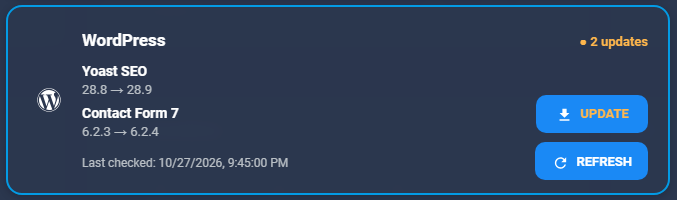
I gave the pill a download icon and the same fixed width as REFRESH, plus a small bottom margin so the two buttons don’t stick together. This is how it looks with two plugin updates waiting (Plugin information contains fictive data):
Things to keep in mind
- Premium plugins: plugins bundled with a premium theme (WPBakery and Uncode Core in my case) are often updated through the theme’s own updater. If WordPress doesn’t list their update in the regular plugin update list, this route won’t see it either.
- Backups: one tap is convenient, but it also means a broken plugin update is one tap away. Make sure your hosting backups or snapshots are running.
- Auto-updates: you can keep WordPress auto-updates enabled next to this. Whichever comes first wins, and the other simply finds nothing to do.
Related posts
- Monitor WordPress Updates in Home Assistant: the sensor and card this button builds on
- Bringing My WordPress Traffic Stats into Home Assistant with a Custom REST Endpoint: the same token-protected REST route pattern
- One-Click Immich Update on Proxmox from Home Assistant: the same UPDATE button idea, for Immich