
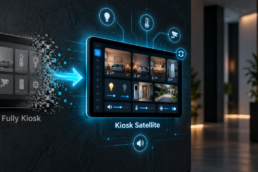
Since I replaced Fully Kiosk with Kiosk Satellite on my wall tablets, I’ve been very happy with it. There was just one thing left that annoyed me: updates. Kiosk Satellite downloads a new version by itself, but then Android shows the familiar Install dialog, and somebody has to walk to the tablet and tap it. With several tablets around the house, that somebody was always me.
The usual answers are ADB, Shizuku or the Home Assistant Companion app. I wanted something simpler that keeps working after a reboot, without a laptop and without cables. So I built a small Android app of my own: InstallWatchdog. It sits quietly in the background, waits for the Install dialog to appear, and taps the button for me. In other words: Android auto-install updates for the apps I choose, nothing more.
In this post I’ll show what the app does, where to download it, how to install and set it up on a tablet, and what a hands-free Kiosk Satellite update looks like. For those who like to build it themselves, I also explain how I build and sign it with Android Studio.
What InstallWatchdog does
- Watches the Android package installer and taps Install / Update as soon as the dialog appears
- Only for apps on an allowlist (by default: Kiosk Satellite). The name must match exactly and there are no wildcards, so it never installs random apps
- Re-opens Kiosk Satellite after the update, because the update closes it
- Survives reboots: Android starts it again by itself
- No internet access, no data collection, no ADB, no Shizuku and no root
- Runs on Android 7.0 and newer, including LineageOS. I use it on Lenovo ThinkSmart View (LineageOS 15.1), Lenovo Tab P11 and Samsung Galaxy Tab S2 and S7 tablets
Download
The app and its source code are on my GitHub. Always get the latest version from the releases page:
Download InstallWatchdog: github.com/rutgerbockholts/InstallWatchdog/releases/latest
Source code and README: github.com/rutgerbockholts/InstallWatchdog
Every release lists the SHA-256 checksum of the APK, so you can check that you have the original file. For version 2.1.0 that is:
66D8CAE7FD661DBD2E6A178C49152DE01A9E28A7F77CC81D974C6E50A9C2C01F
On Windows you check it in PowerShell, in the folder where you saved the APK:
Get-FileHash .InstallWatchdog-2.1.0.apk -Algorithm SHA256
All official builds are signed with my own key. Its certificate SHA-256 fingerprint is afb1768a71ffc5f5f9a5c110882f1699b1eb89f702b43787ada160d9aa863967.
The app is not on Google Play. Play does not allow apps that confirm installs on the user’s behalf, and that is exactly what this app is for. So it is meant for tablets you manage yourself.
How it works
The heart of the app is an Android accessibility service. Accessibility services can read what is on screen and press buttons, which is exactly what a person does when they tap Install. The big advantage: once you switch it on in the Accessibility settings, Android starts it again by itself after every reboot. No foreground service, no boot hacks.
When the installer dialog pops up, InstallWatchdog:
- Checks that the dialog belongs to the system installer (
com.android.packageinstalleron LineageOS,com.google.android.packageinstalleron Google builds). Every other app and screen is ignored - Reads the text in the dialog and looks for an app name that is exactly on the allowlist. “Kiosk Satellite Pro” does not match “Kiosk Satellite”
- Looks up the Install or Update button, by its view ID first and by its label second (English, Dutch and German are built in)
- Taps it. Android keeps the button disabled for a split second as tap-jacking protection, so the app retries a few times until the button accepts the tap
- Closes the “Done” screen if there is one, and re-opens Kiosk Satellite a few seconds after the update
Android itself still protects you as well: an update only installs when it is signed with the same key as the app that is already installed, so a look-alike APK can’t replace your Kiosk Satellite.
What you need
- One or more Android tablets with Android 7.0 or newer
- No PIN or pattern lock on the tablets: the installer dialog can’t appear over a secure lock screen. “None” or “Swipe” is fine
- Kiosk Satellite (or another app you want to keep updated) with permission to install unknown apps
- Only if you want to build it yourself: Android Studio on your PC (free)
Step 1: Copy the APK to the tablet
No USB cable needed. I use the Kiosk Satellite app itself to upload the APK file to each device.
Open the Kiosk Satellite web interface and go to System – File Manager on the left side. Grant permission if that hasn’t been done yet, and acknowledge it on the Android device.
From here, in the top right corner:
- Click on Upload File.
- Locate the InstallWatchdog-2.1.0.apk file you downloaded and upload it to the device.
Alternatively, open the GitHub download link above in the tablet’s browser and download the APK there directly.
Step 2: Install and set up the app
On the tablet, open My Files (or Files) and go to the folder you uploaded the APK to. Tap the APK and choose Install. Android asks once whether the file manager may install apps.
Upgrading from an earlier version? Uninstall the old Install Watchdog first. Version 2.1.0 is signed with my new release key, and Android refuses to install it over a version signed with a different key. This is needed only once.
Then open Install Watchdog and work from top to bottom:
- Read the explanation of what the app does and tap I understand
- Android 13 and newer only: tap App info, open the menu (three dots) and choose Allow restricted settings. Without this the accessibility switch stays greyed out for sideloaded apps
- Tap Enable accessibility service, select Install Watchdog and switch it on. On Samsung it’s under Installed services
- Optionally enter a Device name, for example
thinksmart_kitchen. It’s only a label, so you can tell your tablets apart - Check the Allowlist. It contains
Kiosk Satelliteby default. Add other apps comma separated, using their name exactly as the installer shows it - Tap Save
The top of the screen shows whether everything is in place:
Device: thinksmart_kitchen
Watchdog running
Allowed apps: Kiosk Satellite
Version 2.1.0
Last action: nothing yet
One more setting outside the app: Kiosk Satellite itself needs permission to install unknown apps (Settings > Apps > Kiosk Satellite > Install unknown apps), otherwise it can’t open the installer in the first place.
Step 3: The auto-update in action
This is the part I built it for. When a new Kiosk Satellite version is available, I start the update from my Home Assistant dashboard, just like before. From there everything happens by itself:
- Kiosk Satellite downloads the new version
- Kiosk Satellite opens the Android Install dialog
- InstallWatchdog recognises Kiosk Satellite on the allowlist and taps Update within a second or two
- Android installs the update and closes Kiosk Satellite
- InstallWatchdog opens Kiosk Satellite again
Afterwards, the Last action line in the app shows what happened, for example:
2026-10-19 21:04 Kiosk Satellite updated to 1.4.2
InstallWatchdog never touches the APK file itself. It only presses the button that Kiosk Satellite brings up, so it doesn’t need access to the download, and it doesn’t need any network access at all.
Surviving reboots
The accessibility service comes back automatically after every reboot, so there is nothing to start. The service catches every error internally, because Android may switch off an accessibility service that keeps crashing.
One tip: never use Force stop on the app. On some ROMs that switches the accessibility service off as well. If that ever happens, the app screen shows Accessibility service NOT running and you switch it on again.
Why I dropped the Home Assistant integration
The first version of InstallWatchdog had a lot more on board: a small HTTP API on every tablet, a shared token, a webhook that reported every click to Home Assistant, and sensors per tablet. It worked, but after living with it for a few days I noticed that I never needed any of it. The only thing that matters is that the Install button gets tapped.
So version 2 does exactly that and nothing else. That makes it smaller, easier to set up (no token, no webhook, no YAML), and safer: the app no longer even asks for internet access.
Build it yourself (optional)
You don’t need this to use the app. But if you’d rather build it from source, or want to change something, the full Android Studio project is on GitHub. It has no third-party libraries:
InstallWatchdog/
  watchdog.properties            default allowlist, baked into the APK
  keystore.properties.example    template for your own signing key
  settings.gradle.kts
  build.gradle.kts
  app/
    build.gradle.kts
    src/main/AndroidManifest.xml
    src/main/java/com/rutg3r/installwatchdog/
      WatchdogService.kt   the accessibility service that taps Install
      Prefs.kt             allowlist and settings
      MainActivity.kt      the setup screen on the tablet
- Install Android Studio and choose the Standard setup on first launch
- Download the source code from GitHub (Code > Download ZIP) and unzip it to a simple folder
- Optionally change the default allowlist in
watchdog.properties - In Android Studio choose File > Open and select the unzipped folder, the one that contains
settings.gradle.kts. Click Trust Project and wait for the Gradle sync - Choose Build > Clean Project, then Build > Build App Bundle(s) / APK(s) > Build APK(s)
Your own signing key
Android only accepts an update when it is signed with the same key as the installed app. Without your own key, Android Studio signs with a debug key that lives on your PC, which is fine for testing but not for devices you want to keep updating. Creating your own key is a one-time job:
- Choose Build > Generate Signed App Bundle or APK > APK > Create new. Save the
.jksfile outside the project folder, use the aliasinstallwatchdog, a validity of 50 years and a strong password. Fill in at least your name, then cancel the wizard - Copy
keystore.properties.exampletokeystore.propertiesand fill in the path (with forward slashes) and passwords. This file is in.gitignore, so it never ends up on GitHub - Back up the
.jksfile and the passwords. Lose them, and you can never publish an update that installs over your own app - Set the build variant to release (Build > Select Build Variant) and build the APK as above. It ends up in
app/build/outputs/apk/release/
Three mistakes I made along the way, so you don’t have to:
- Don’t open the zip file itself in Android Studio. It happily shows the contents, but you can’t build from it
- Don’t use the green Run button to create the APK for the tablets. Those builds are marked as test-only and often refuse to install from a file manager
- Keep your signing key safe. Switching keys later means uninstalling and reinstalling the app on every tablet
Troubleshooting
- “There was a problem parsing the package”: the tablet runs an Android version older than 7.0, or the APK was not copied completely. Copy it again and check the checksum
- “App not installed” when upgrading: the installed version is signed with a different key. Uninstall the old Install Watchdog first
- Accessibility switch greyed out: on Android 13 and newer, allow restricted settings first (step 2)
- The dialog isn’t tapped: check that the name on the allowlist matches the app name in the dialog exactly. The Last action line shows
Ignored (not on allowlist)with the text it saw. If your tablet uses another language, the word for Install may need to be added to the app - Nothing happens at all: open the app and check that it says Watchdog running, and that the tablet has no PIN or pattern lock
A word on security
An app that can tap buttons for you deserves some care. InstallWatchdog only acts inside the system installer, only for apps that are exactly on the allowlist, and it has no internet access. There are deliberately no wildcards, so you always decide which apps may update themselves. Use it on devices you manage yourself, and only allowlist apps you trust.
Wrapping up
What started as a small annoyance turned into a neat little tool. My wall tablets now update Kiosk Satellite without me walking around the house, and after a reboot everything just keeps working. Adding a new tablet takes a couple of minutes: install the APK, switch on the accessibility service and done.
The app is free and open source under the MIT license. Feedback, issues and ideas are welcome on GitHub.
Full walkthrough: from installing my custom Android app InstallWatchdog to a fully hands-free Kiosk Satellite update on my wall tablet:
Facebook: https://www.facebook.com/share/v/1J9WgzbRh4/
Youtube: https://youtu.be/eLvRy1gfRZA

Related Posts
October 14, 2026
Replacing the Fully Kiosk app with Kiosk Satellite

August 16, 2026
Monitor QNAP Firmware Updates in Home Assistant with MQTT
February 13, 2016